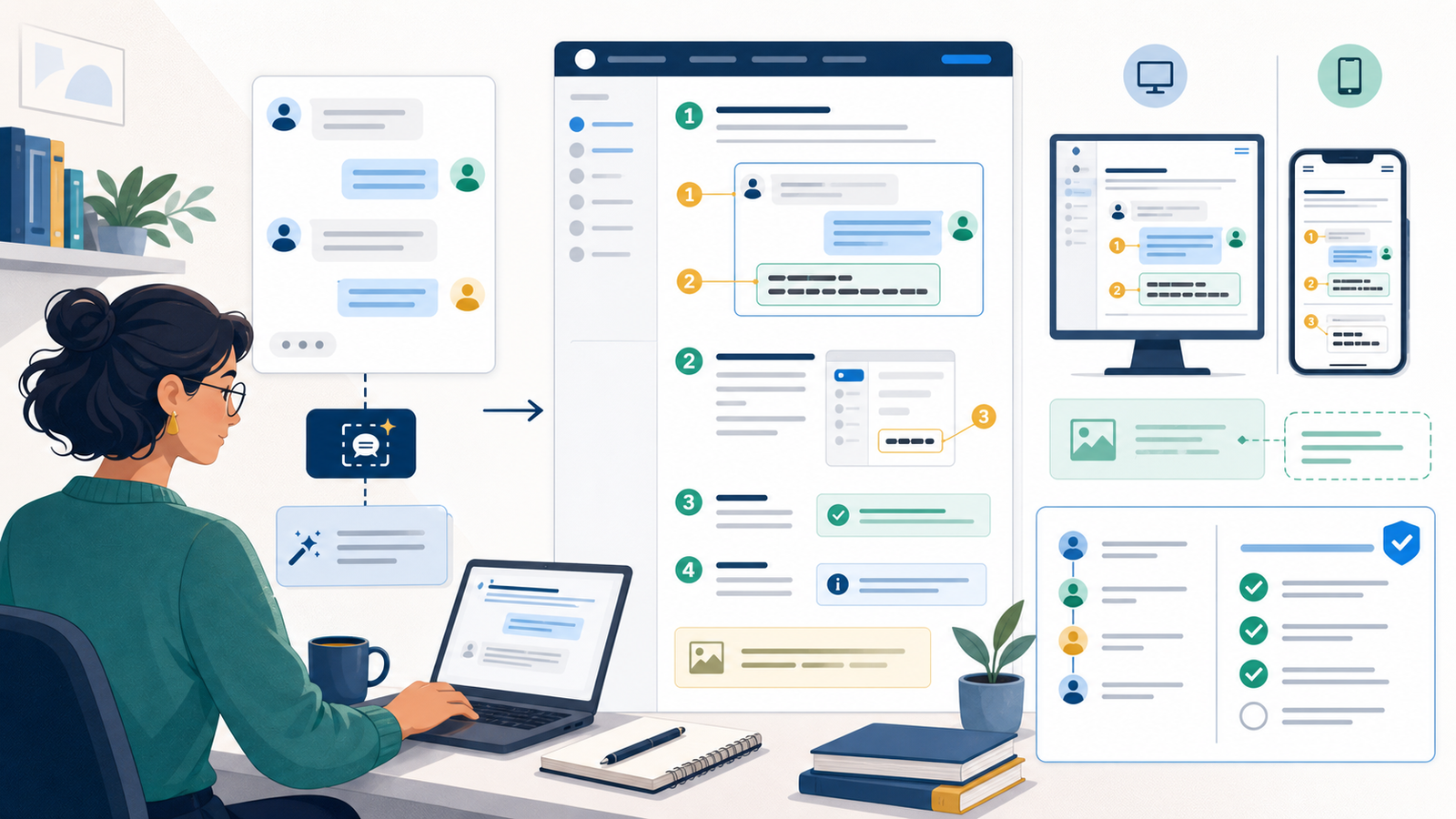
A chat screenshot generator can make product documentation easier to scan when a task depends on message order, role, or visible status. A good screenshot shows the exact state a reader needs while the surrounding text explains the action, result, and limitations. A decorative conversation that repeats the paragraph adds little value and becomes expensive to maintain.
This guide uses a fictional collaboration tool called North Dock and a made-up notification-settings tutorial. No real customer, workspace, email address, token, message, or production interface appears. The workflow applies to help centers, release notes, onboarding guides, internal knowledge bases, and QA instructions. It does not authorize copying a customer conversation or presenting a simulated screen as a production guarantee.
You can build the fictional documentation example in the chat screenshot generator with invented profiles, timestamps, playback, and Mobile or Web export.
1. Decide whether the screenshot adds instructional value
Use a chat screenshot when visual order, speaker identity, unread state, system notice, or confirmation placement matters. Prefer selectable text when the reader only needs the wording. The screenshot should answer a question that would otherwise require a longer explanation.
Write the instructional purpose before creating the image. In this example, the reader must distinguish a teammate message from a system confirmation and verify that muted notifications still appear in history.
- Show one meaningful interface state.
- Keep the related instruction next to the image.
- Avoid screenshots that only decorate a heading.
- Use text or video when motion or interaction is essential.
2. Build a fictional documentation scenario
Create identities, workspace names, dates, devices, and messages specifically for the tutorial. Do not begin with a real support ticket and attempt to blur it later. A unique project name, timestamp, avatar, channel title, or attachment preview can identify a person even when the username is hidden.
The North Dock example uses abstract avatars and neutral content: a teammate posts a schedule note, the learner changes a notification setting, and a system message confirms the result. Nothing in the screenshot should resemble a real customer record.
3. Match the screenshot to one documented step
A single image should have a clear relationship to the numbered step around it. If the page says “Open notification settings,” do not show the later success state without explaining the transition. Give files stable names that describe the task and state rather than generic names such as final-2-new.png.
For multi-step workflows, decide whether several focused crops or one annotated overview is easier to maintain. Avoid combining unrelated states into a composite unless the caption makes the composition explicit.
4. Draft the example conversation
The dialogue should be short enough to support the tutorial but complete enough to make role and state understandable. It should not include passwords, recovery codes, customer addresses, internal URLs, private file names, or fabricated endorsements.
The following fictional sequence supports a notification-history tutorial.
- Teammate: “The fictional review starts at 14:00. The agenda is in the shared demo folder.”
- Learner: “I will mute live alerts while I prepare, but keep the thread in history.”
- System: “Notifications for this fictional thread are muted until 14:00.”
- Teammate: “I added one agenda question.”
- System: “The new message remains visible in thread history; no alert was sent.”
- Learner: “Notifications restored. I can review the message before the session.”
5. Capture desktop and mobile states carefully
Documentation readers may use a different viewport from the writer. Check whether message wrapping changes meaning, important controls move below the crop, or a role label disappears on a narrow screen. Use the platform view that matches the documented step and state the viewport when layout differences matter.
Do not shrink text until it becomes unreadable just to fit a preferred aspect ratio. Keep safe margins around callouts, use consistent scaling across a guide, and verify that compressed images remain legible on high-density displays.
6. Add annotations without hiding the interface
A callout should direct attention to an action or state, not cover the content being explained. Numbered annotations should follow the same order as the written steps and use a consistent shape and color. Avoid arrows that cross each other or point between two possible targets.
If a screenshot needs many annotations, the underlying procedure may need to be divided. Keep an unannotated source export so future editors can update the image without reconstructing obscured content.
- Use one annotation style per documentation set.
- Place numbers in reading order.
- Explain every marker in nearby selectable text.
- Keep a clean source version for maintenance.
7. Make screenshot documentation accessible
Alt text should explain why the image is present: for example, “Fictional thread showing a muted-notification confirmation above a message that remains in history.” It does not need to transcribe every visible bubble when the full sequence is already provided as page text.
Check contrast, font size, crop order, zoom behavior, and keyboard access to any lightbox. Never put the only warning, command, or error-recovery instruction inside an image. Readers who cannot see the screenshot must still be able to complete the task.
8. Maintain images across product versions
Screenshots age when labels, layout, policy, branding, or behavior changes. Record the product version, capture date, source scenario, locale, owner, and pages using each asset. Review images during relevant releases rather than waiting for a reader to report a mismatch.
A visual difference is not always a documentation error, but a behavior difference is. Prioritize updates when a screenshot points to the wrong control, omits a new warning, shows a removed feature, or contradicts current privacy guidance.
- Store source and exported versions separately.
- Track every page that reuses the image.
- Review after UI or workflow changes.
- Remove outdated screenshots instead of leaving conflicting instructions.
Frequently asked questions
Should screenshots contain real customer data if permission was obtained? Prefer purpose-built fictional data because permissions, future reuse, and revocation can become difficult to manage. Should every step have an image? No; add one only when it reduces uncertainty. Is a chat screenshot generator enough to document interactive behavior? It can show states and sequence, but motion, focus, input validation, and backend behavior may need a test environment, video, or interactive example.
Product documentation checklist
- The image answers a specific instructional question.
- All people, messages, identifiers, and workspaces are fictional.
- The screenshot matches the documented step and viewport.
- Annotations are limited, ordered, and explained in text.
- Alt text and complete selectable instructions are available.
- Version, owner, reuse locations, and review date are recorded.