
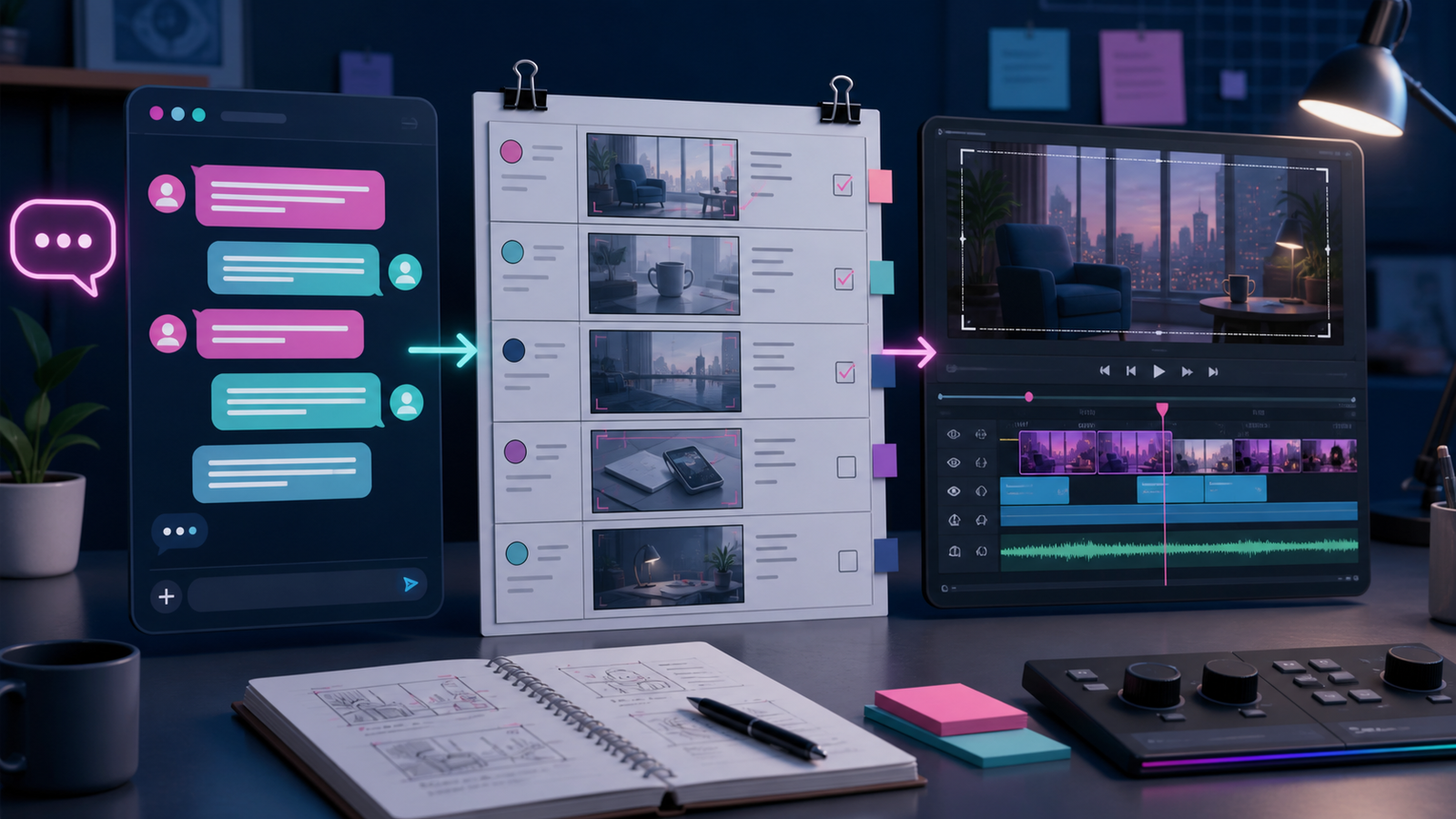
Video scripts often reveal their weaknesses only after the dialogue is finished: the opening is slow, character lines have no purpose, the image never changes, or the captions move too quickly to read. A chat simulator can turn dialogue into a visible timeline before filming and editing, allowing creators to test pacing, information density, and shot requirements.
This is a pre-production method, not a way to fabricate a real conversation record. Use fictional or authorized people, accounts, messages, and events. Never impersonate a person or organization, invent leaked footage, fabricate testimonials or evidence, or use real platform marks to create the illusion of an official or real event.
1. Define the video promise and viewing context
Write a one-sentence promise, such as: “In 90 seconds, viewers will learn how to turn a support exchange into a clear shot plan.” Then identify where the video will be watched: a vertical phone feed, a horizontal course, an autoplay feed without sound, or a narrated presentation. Viewing context determines message length, caption size, and aspect ratio.
Keep one primary outcome. A script that explains tool setup, case background, theory, and several variations at once turns the chat into a crowded manual. Place secondary material in the article, description, or a follow-up video.
2. Replace continuous dialogue with a beat sheet
Divide the script into five kinds of beat: hook, problem, clarification, demonstration, and action. For each beat, record what the viewer must understand, what appears on screen, and the estimated duration. A beat is not the same as one message. It may contain two or three short messages or combine narration with an interface change.
- Hook: state a relevant problem without false shock or fear;
- Problem: show why the current version is unclear;
- Clarification: add a condition that changes the solution;
- Demonstration: let viewers see the revision and result;
- Action: end with one step the viewer can perform, not a vague slogan.
3. Estimate reading time inside the simulator
Place messages in the target layout and review them at final type size. Do not judge from a zoomed editor. A short message often needs at least a second or two, while a message with several concepts needs longer. No fixed formula replaces a test viewer watching without pausing.
When viewers cannot finish reading, first remove repetition, separate ideas, or move background into narration. Do not simply increase the speed of message appearance. Captions and chat bubbles compete for attention when they communicate different material at the same time.
4. Convert each beat into a shot card
A shot card records a number, visual, dialogue or narration, duration, sound, and transition. The chat does not need to remain full-screen. At useful moments, cut to a magnified detail, a process diagram, a hand action, or a summary card. Every visual change should improve understanding.
Reserve safe areas for screen capture. Important text should not sit near crop boundaries, and vertical-platform controls may cover the bottom or right edge. Each shot card should list required assets and permission status so licensing problems do not appear for the first time during editing.
5. Mini case: a 60-second “rewrite a vague reply” video
The lesson teaches viewers to change “We will handle it as soon as possible” into an actionable response. From 0–5 seconds, show the vague message and ask: “After reading this, do you know the next action or time?” From 5–15 seconds, a second fictional role identifies three gaps: owner, action, and update time.
From 15–40 seconds, revise the message in three passes. First separate known facts, then name ownership, and finally state the time of the next update. Change only one element in each pass and visually highlight the difference. From 40–52 seconds, play the complete revised version. From 52–60 seconds, end with a three-item card: fact, owner, time.
The case does not need a real company, customer, or incident. Use generic roles and fictional details, and label the visual “communication writing demonstration.” For training, remind viewers to adapt the pattern to verified facts and organizational policy. A sample promise must not be copied into a real incident without confirmation.
6. Choose static chat, animation, or screen recording
Static chat is useful for structural analysis and is easy to pause or annotate. Simple animation shows order, but must leave enough time to read. Screen recording works well for tutorials, but can accidentally expose tabs, notifications, or account information. Close private notifications, use test data, and inspect the edges of the browser before recording.
Do not add typing, read, online, or system-notification states merely to look realistic. Use a state only when the state itself is the teaching subject, and identify it as a simulated effect.
7. Plan captions, narration, and bilingual versions
Captions should represent spoken audio, not carry a separate explanation. A short on-screen label can support an important concept, but the frame should not become crowded. Chinese and English versions should not reuse identical timing after replacing subtitles. Reading speed and sentence length differ, so message duration and shot rhythm need separate adjustment.
Provide accurate captions for viewers who are deaf or hard of hearing and descriptions for important non-speech information. Sound alone should not signal a message change. The cover and article preview also need meaningful alt text.
8. Run authenticity and safety checks
Review frame by frame for names, portraits, email addresses, phone numbers, orders, payments, locations, and notifications. Check for third-party marks, verification symbols, and styles that resemble an official announcement. Health, legal, financial, crisis, and public-event material should remain general education and clearly state that it does not replace professional advice or a real response process.
Do not use tiny disclosure text to excuse a misleading main image. The title, visual context, description, and landing page should consistently identify the simulation.
9. Review with a mute test and an audio-only test
Play the video without sound. Can a viewer understand the problem, change, and conclusion from the visuals and captions? Then hide the image and listen. Is the narration complete, or does it depend on an unseen button? Finally, play at normal speed and record every point where you want to pause. A critical message that requires pausing should be shorter or stay on screen longer.
Common questions
Are more chat messages better for a video?
No. Keep only messages that advance understanding. Every additional message adds reading time and visual load.
Can I use a real conversation for a before-and-after rewrite?
Unless every relevant person has authorized publication and the material is appropriate to share, extract the problem pattern and write a new fictional case.
Can Chat Simulator replace full storyboard software?
No. It is useful for testing dialogue and pacing. Complex shots, action, sound, and production dependencies still belong in a formal storyboard and production sheet.
Pre-production checklist
- The promise, platform ratio, and viewing environment are defined;
- The script uses hook, problem, clarification, demonstration, and action beats;
- Every message is readable at final size and playback speed;
- Shot cards include visual, duration, sound, and asset permissions;
- Chinese and English timing and captions are reviewed separately;
- All identities, accounts, and events are fictional or authorized;
- No verification, transaction, leak, or official-announcement element can mislead viewers;
- Mute, audio-only, and normal-speed reviews are complete.
A chat simulator is most useful when it answers one production question early: Can the audience understand this dialogue and act on it within the available time? When messages, shots, and duration correspond, creators can find problems before filming, reduce reshoots, and produce clearer, more responsible video content.