How to Create a Discord-Inspired Chat Screenshot: A Complete Guide
Chat Simulator helps you design Discord-inspired chat mockups for product prototypes, lessons, creative writing, community examples, social posts, and client presentations. This guide focuses on creating a clearly simulated interface. It is not a guide to impersonating real people, fabricating evidence, or misleading an audience. Discord is a trademark of its respective owner, and Chat Simulator is not affiliated with, sponsored by, or endorsed by Discord.
1. Define the purpose before you edit
Write down what the image needs to communicate. Are you demonstrating a support flow, a community moderation example, a gaming-group announcement, or dialogue between fictional characters? A clear purpose determines how many identities, messages, and timestamps you need. For one mobile image, two to four identities and roughly eight to sixteen messages are usually easier to read than a crowded, full-length conversation. Split a long scenario into a short sequence of images.
2. Build recognizable identities
In the editor, give each speaker a short display name, an avatar, and a distinguishable identity color. Avoid real names and personal photos unless you have permission to use them. Chat Simulator processes uploaded assets locally in the browser, which makes it practical to try different avatars before export. A consistent illustration style with different dominant colors helps readers identify speakers without making the screen visually noisy.
3. Create a channel-like rhythm
A Discord-inspired composition feels convincing because of its conversation rhythm, not because it contains a large amount of text. Start with one short message that establishes context. Follow it with a question, a response, and only the details needed to support the scenario. Break a large paragraph into two or three messages. Keep consecutive messages from one identity visually close, then create a clearer change of pace when another identity replies.
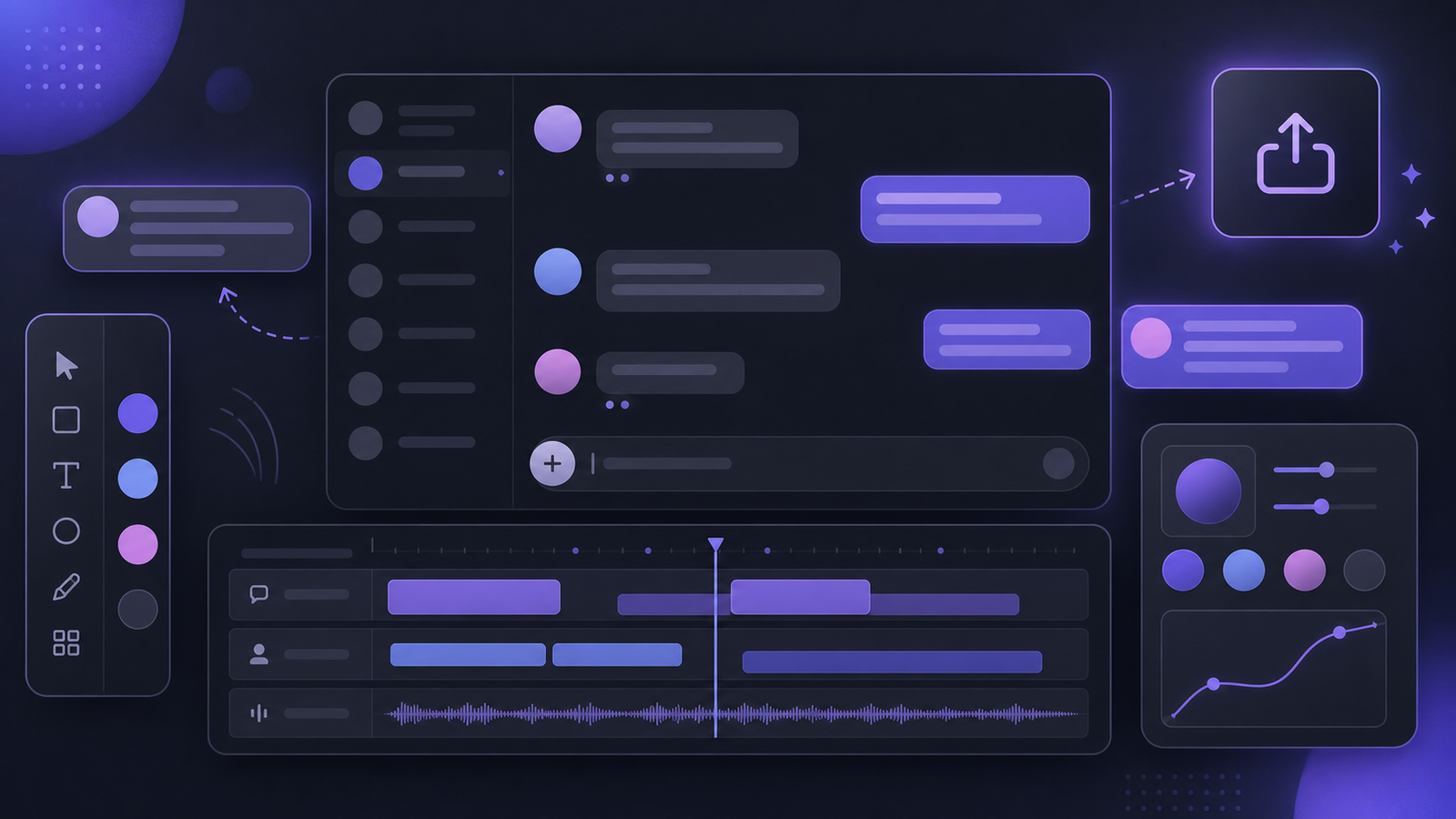
Chat Simulator lets you edit message text, order, identities, and timestamps. Use those controls to make the conversation understandable without extra explanation. A reader should know who is speaking and why within the first few messages.
4. Use timestamps intentionally
Timestamps should support the story. A fast live discussion might use one- to three-minute gaps. An asynchronous community thread may span several hours. Choose a date format that fits the intended audience and make sure the chronological order never conflicts with the visual order. If the mockup includes images, links, or file references, use assets you own or have permission to use. Label the result as a sample, concept, or simulation when context could otherwise be unclear.
5. Preview with the play-chat feature
Use the play-chat preview before exporting. Watch for three issues: whether the opening establishes context, whether identities are easy to distinguish, and whether one oversized message interrupts the pace. Playback often reveals repeated wording, abrupt timestamp jumps, and inconsistent character voices more clearly than a static scan.
6. Export for the destination
Chat Simulator can export PNG or JPG in Web or Mobile layouts. Choose PNG when crisp small text is the priority. Choose JPG when file size matters more, then inspect the compressed result before publishing. Mobile layout generally works better for social posts and narrow screens. Web layout is useful for documentation, tutorials, and desktop product presentations.
Before export, remove private data such as phone numbers, email addresses, order identifiers, internal links, and real account details. Confirm that every avatar and attached image is licensed or created by you.
Common problems and practical fixes
1. The image feels crowded: reduce the number of speakers, shorten each message, and move background explanation into the surrounding article.
2. The dialogue sounds artificial: give every identity a consistent tone and avoid repeating the same sentence structure.
3. The timeline feels wrong: pick a starting time first, then increase each timestamp according to a realistic pace.
4. Speakers look too similar: increase contrast between avatars and identity colors while keeping the overall palette coordinated.
5. Text is hard to read on phones: use the Mobile layout, reduce horizontal detail, and export a crisp PNG.
Good use cases
Discord-inspired chat mockups work well for UI/UX reviews, community-policy training, classroom examples, creative-writing storyboards, support-script demonstrations, and clearly labeled social storytelling. Do not present generated content as a real conversation. Do not use it for fraud, defamation, impersonation, or fabricated evidence. When sharing publicly, add language such as “simulated conversation,” “concept mockup,” or “fictional example.”
FAQ
Does Chat Simulator upload my avatar to a server?
The product documentation states that uploaded content is processed locally in the browser. You should still use only images you are authorized to handle and avoid sensitive identity documents or private records.
Should I export PNG or JPG?
Use PNG for interfaces with a lot of small text. Use JPG when a smaller file is more important, and verify that compression has not made timestamps or names difficult to read.
Can I make an exact Discord screenshot?
A safer and more useful goal is an independent Discord-inspired mockup with an obvious simulated character. Avoid copying trademarks or official branding, and never use the result to mislead someone about the source of a conversation.
Final checklist
Before export, confirm that the scenario is clear, names and avatars are authorized, timestamps follow the message order, private information is removed, a simulation label is present when needed, the Web or Mobile layout matches the publishing channel, and the PNG or JPG remains legible. These checks turn a simple chat image into a purposeful, readable, and responsible design asset.