
How to Create a WhatsApp-Style Conversation Mockup Online
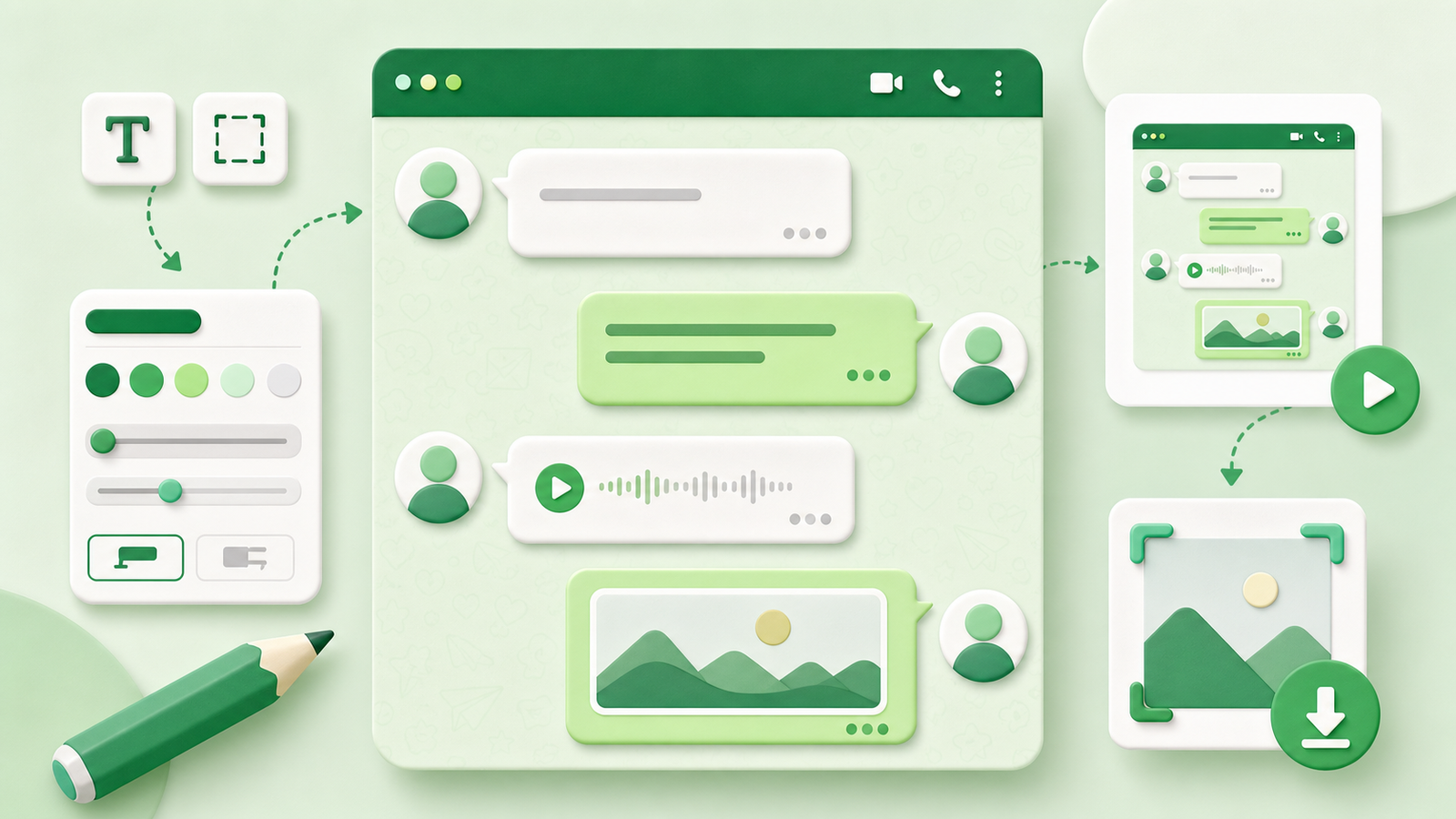
Chat-interface mockups are useful for product prototypes, course illustrations, support training, creative writing, and clearly labeled social stories. Chat Simulator provides browser-based editing, identity controls, timestamp settings, playback, and PNG or JPG export, helping you turn a written script into an understandable visual example.
This guide explains how to design an independent WhatsApp-style mockup, not a real conversation record. Do not use it to impersonate someone, fabricate a transaction, invent a testimonial, or mislead readers. WhatsApp is a trademark of its respective owner, and Chat Simulator is not affiliated with, sponsored by, or endorsed by WhatsApp.
1. Define the purpose
Do not begin by entering random messages. Write down what the image must accomplish. Is it explaining an app flow, demonstrating a support script, illustrating a lesson, or presenting a fictional scene? The purpose determines the number of identities, the amount of text, and the final dimensions.
A direct conversation with eight to sixteen short messages is usually readable in one mobile composition. If the script needs more space, divide it into two or three consecutive images instead of shrinking the text.
2. Prepare an original script
A complete demonstration normally has three parts: an opening that establishes the situation and question; a middle that provides necessary information through questions and replies; and a closing that confirms a result or next step.
Let every message express one idea. Avoid adding empty small talk only to make the result appear authentic. Product tutorials should state actions clearly. Fictional scenes should give each identity a consistent voice.
3. Configure identities and avatars
Set short names, authorized avatars, and distinguishable identity colors in the editor. Fictional identities are preferable for public examples. Use original illustrations, abstract graphics, or images you are licensed to use.
Do not upload identity documents, customer portraits, private profile photos, or assets containing contact details. Even when assets are processed locally in the browser, apply data minimization: information that is not needed in the final image should not enter the editor.
4. Arrange messages and timestamps
Choose a starting time and increase each timestamp according to the flow. A quick exchange may use gaps of less than a minute to two minutes. A step that requires reading or completing a task may need a longer interval. Match the date format to the audience and verify that words such as “today” and “tomorrow” agree with the displayed date.
Timestamps should help readers understand the sequence. They should not be used to make fictional material resemble evidence.
5. Review the conversation with playback
Play the sequence from the beginning and check whether the first three messages establish context, the identities are easy to distinguish, messages remain concise, timestamps follow a logical order, and the closing provides a clear outcome.
If the scene requires verbal explanation, add one short line of context near the beginning rather than a large block at the end.
6. Choose an export format
Chat Simulator supports Web and Mobile layouts with PNG or JPG export. Mobile often works best for social platforms and phone tutorials. Web is useful for blog articles and desktop documentation.
Choose PNG for crisp small text. Choose JPG when a smaller file matters, then inspect names and timestamps on a phone. Before export, remove phone numbers, email addresses, locations, order numbers, payment details, and private links.
7. Explain that the result is simulated
When sharing publicly, label the result as a simulated conversation, product concept, or fictional example in the image, title, caption, or surrounding article. Transparent context protects readers and makes the asset more appropriate for education, design review, and brand communication.
Appropriate use cases
Suitable uses include product user-flow prototypes, approved support-training scripts, language lessons, clearly labeled creative writing, and illustrations for help centers, blogs, and presentations.
Inappropriate uses include impersonating a real contact, fabricating payments or orders, inventing customer testimonials, defaming someone, and presenting a mockup as an authentic record.
FAQ
Do I need to install software?
No. Editing and export are available in the browser.
Should I choose PNG or JPG?
Choose PNG for text-heavy images and crisp edges. Choose JPG when file size matters, and verify the compression quality.
Should the mockup exactly copy WhatsApp?
No. Tutorials and prototypes do not require pixel-level replication. An independent visual treatment, no official logos, and clear simulation context are better for responsible public use.
Pre-publishing checklist
Confirm that the purpose is clear, the script is original, names and avatars are authorized, timestamps are consistent, private information is removed, the simulated nature is disclosed, and the final image remains readable on both mobile and web. The result should be a useful interface demonstration rather than a misleading fake chat.