
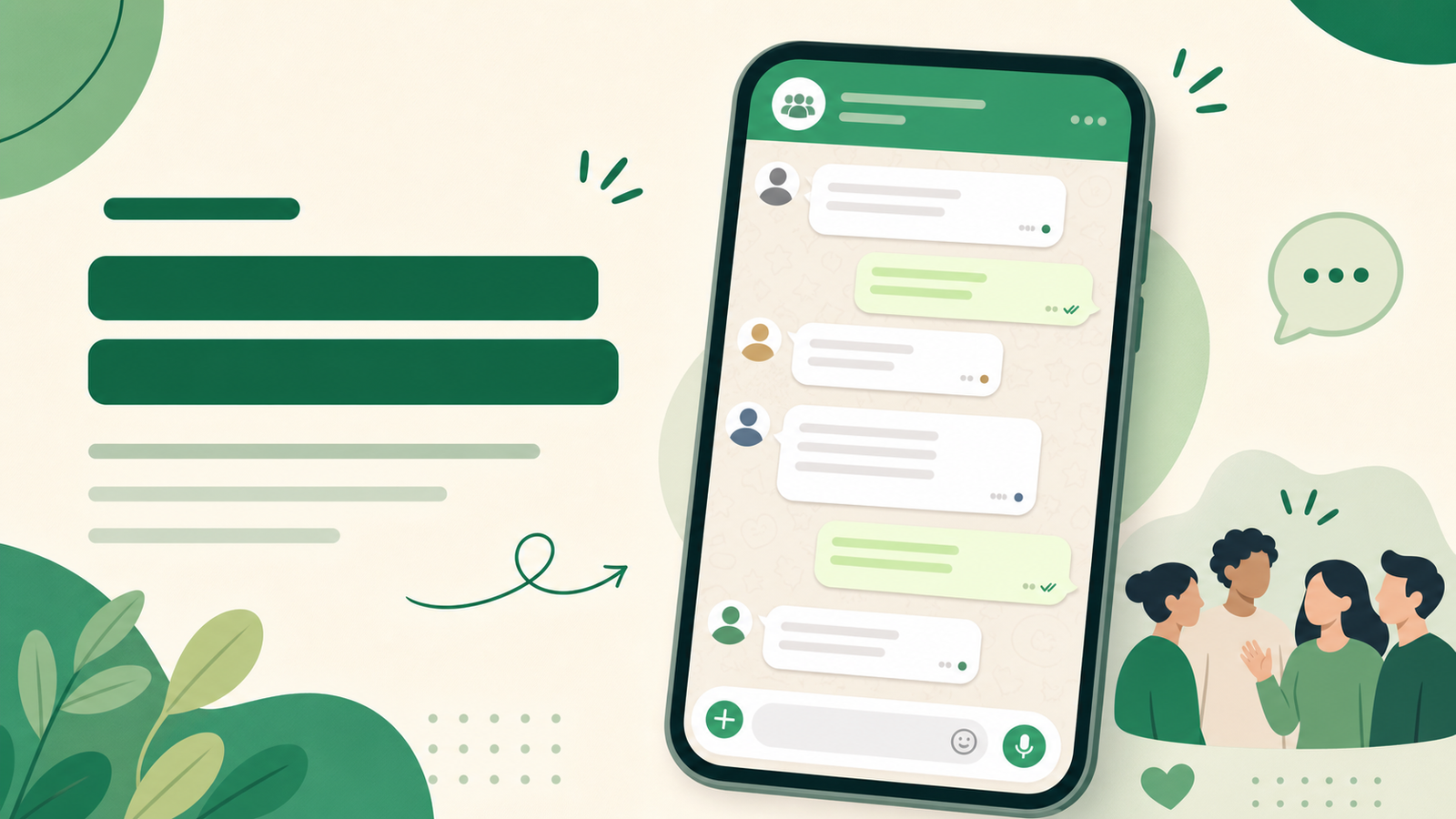
How to Make a WhatsApp-Style Group Chat Mockup
Group-chat mockups are useful for product prototypes, teaching examples, event scripts, support training, and fictional storytelling. Chat Simulator lets you arrange multiple identities, refine avatars and timestamps, preview the exchange, and export an image for web or mobile use. This guide describes an independent WhatsApp-style design. It is not about copying the official interface, impersonating contacts, fabricating transactions, or creating false evidence. WhatsApp is a trademark of its respective owner, and Chat Simulator is not affiliated with, sponsored by, or endorsed by WhatsApp.
1. Outline the group conversation first
A group exchange becomes confusing faster than a two-person chat, so start with a simple outline rather than a pile of messages. Define the topic, the participants, the disagreement, and the final decision. An event-planning example might move through four beats: the organizer introduces the goal, one member identifies a schedule conflict, another proposes an alternative, and the group confirms the result.
Give every identity one clear function. For a single mobile image, three to five speakers and roughly ten to eighteen messages are usually manageable. If the scenario needs more people, move minor participants into the surrounding explanation or split the mockup into a discussion image and a confirmation image.
2. Build identities readers can distinguish
Give each participant a short name, an authorized avatar, and a consistent voice. An organizer might use complete sentences and summarize decisions. An enthusiastic member might answer quickly. A cautious member might ask a clarifying question before agreeing. Avoid giving everyone identical wording, punctuation, and emoji habits.
Use avatars you created or have permission to use. Do not combine real names, personal photos, phone numbers, or customer information in a way that resembles a real account. Chat Simulator processes uploaded assets locally in the browser, but the same privacy rule still applies: if information is not necessary in the final image, do not place it in the editor.
3. Create a layered group rhythm
A useful group chat does more than rotate through speakers. It advances one topic in stages. The opening message establishes context. The middle introduces questions or alternatives. The closing produces a decision someone can act on. Break long explanations into short messages and add a concise summary after the key decision.
Consecutive additions from one identity can use smaller timestamp gaps. A change of speaker or topic can use a larger gap. Do not add empty replies merely to make the group look busy. Each message should advance the scenario, explain context, or confirm a next step.
4. Make timestamps internally consistent
Choose a starting time and increase timestamps in order. A fast live exchange may use gaps of less than a minute to two minutes. A distributed team may take several hours to reach a decision. Match date and time formats to the intended audience, and verify that words such as “today” and “tomorrow” agree with the displayed dates.
For lessons, appointments, or events, let the closing message repeat the exact date, time zone, and responsible person. That improves readability and demonstrates why a group-chat prototype can be useful.
5. Review density with playback
Use the play-chat preview after the first draft. Watch the order in which identities appear, whether the reader can tell who is answering whom, and whether the conclusion disappears beneath casual replies. If the exchange feels rushed, remove duplicate messages. If the scenario is unclear, add one short line of context near the beginning instead of a large explanation at the end.
6. Export for Web or Mobile
Choose Mobile layout for social posts, course cards, and phone previews. Web layout works well for product documentation, blog illustrations, and desktop presentations. PNG is usually better when the screen contains small names and timestamps. JPG can reduce file size, but inspect the compressed result on a phone before publishing.
Before export, remove real phone numbers, email addresses, locations, order identifiers, payment details, internal links, and unauthorized portraits. When sharing publicly, label the result as a simulated group chat, concept mockup, or fictional example.
Common problems and fixes
1. Too many people: combine identities that perform the same role and keep only the speakers who move the scenario forward.
2. Oversized messages: express one idea per message and place background information in the surrounding article.
3. Too many colors: distinguish avatars while keeping the background and bubble palette coordinated.
4. Dialogue reads like meeting minutes: add questions, confirmations, and brief natural responses.
5. The decision is hard to find: let the organizer restate the choice, timing, and next step at the end.
6. Mobile text is difficult to read: reduce horizontal detail, choose Mobile layout, and export PNG.
Appropriate use cases
WhatsApp-style group-chat mockups can support event-planning examples, customer-support training, collaboration prototypes, online courses, language practice, storyboards, and clearly labeled social content. They should not be used to fake transactions, impersonate people, publish defamatory claims, or present fictional conversations as real records.
FAQ
Can I use a real contact's avatar?
Use it only with explicit permission and transparent publishing context. Original illustrations, abstract avatars, or identities created specifically for a demonstration are safer choices.
How many messages should a group chat contain?
There is no fixed limit, but ten to eighteen messages often fit a single mobile composition. If readers must zoom repeatedly or search for the main point, simplify the exchange or split it into multiple images.
Should I choose PNG or JPG?
Choose PNG for text-heavy interfaces, crisp avatar edges, and small timestamps. Choose JPG when file size matters, then verify the compression quality.
Pre-publishing checklist
Confirm that the purpose is clear, names and avatars are authorized, every speaker has a consistent voice, timestamps are chronological, the decision is easy to find, private information is removed, a simulation label is present, and the export layout matches the destination. These checks turn a group-chat mockup into a clear communication design rather than a stack of messages.